top of page
Truckers Trip Planning App Logo

The Truckers Trip Planning App Blog provides Industry news and discussions about truckers trip planning and load decisions geared towards helping company truck drivers, leased operators and owner operators gain greater profits from the loads they run.

Truckers-trip-planning-app-on-mobile (1)

With the Truckers Expense Reports and Accounting for Truckers App, lease operators and owner operators can maintain their income statement, build their business balance sheet by recording their trucking expenses, Company Truck Drivers can record their personal expenses while maintaining their own accounting system.

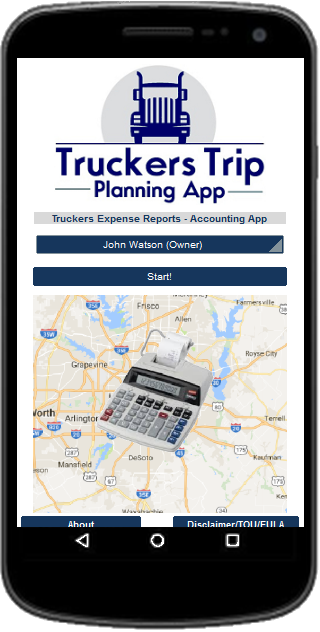
To use the Truckers Expense Reports and Accounting for Truckers App, follow these step-by-step instructions:


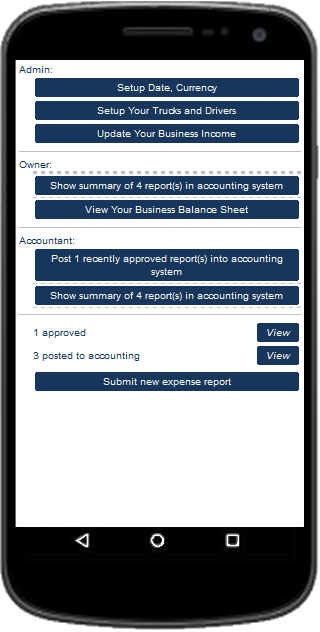
When the app opens it opens to the Home page. From there select "Owners Name" and click on "Start". This will take you to the "Task Selection" page of the App where you will see three roles; "Admin", "Owner", and "Accountant".


Set up your Date and Currency Preferences

  1. Start by clicking on the button to Set up your Date and Currency Preferences under "Admin".

  2. Use the "Date Selection" drop down box to choose the format you want to use.

  3. Next use the "Currency Code" drop down box to choose your currency.

  4. Now Check your "Prefix" or "Postfix" symbol.

  5. Finally, change the "Currency Exchange Rate" direction that you want to use for your truckers accounting system.

  6. "Save and Close" the page and it will return you to the "Task Selection" page.


Setup Your Trucks and Drivers


  1. Click on the button to "Setup Your Trucks and Drivers" and choose "Edit".

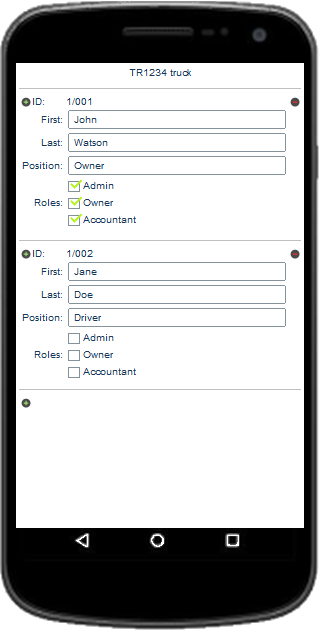
  2. ​Edit the Truck Number to your Truck Number​.

  3. Now Click on the button to "Edit your Truck's Drivers".

  4. Change "Owners" to your First Name.

  5. Change "Name" to your Last name. NOTE: Leave your "Position" as "Owner" and Leave "Admin", "Owner", and "Accountant" checked. This allows you to be able to perform all of the Task necessary to use the full functionality of the App. NOTE: If there is another Team Driver or Student in your Truck, Click on the + sign to add another driver.

  6. Enter the Drivers First Name, Last Name, and enter his position as "Driver".​ DO NOT ADD ANY ROLES TO This Driver.

  7. Click on your Devices "Back Button". NOTE: If you have more Trucks then you will need to set them up now. IF NOT Click on the SAVE AND CLOSE button to return to the Task Selection Page. IF You Do:

  8. Click on the + sign to add your next Truck.​

  9. Enter The "Truck Number".​

  10. Now Click on the button to "Edit your Truck's Drivers".

  11. SCROLL DOWN and Click on the + sign. You will see that the Truck ID is now your second truck.

  12. Do this for each Driver in the Truck: Enter the Drivers First Name, Last Name, and enter his position as "Driver".​ DO NOT ADD ANY ROLES TO The Driver.

  13. Click on your Devices "Back Button".

  14. Click on "Save and Close" to return to the "Task Selection" Page.

Update Your Business Income


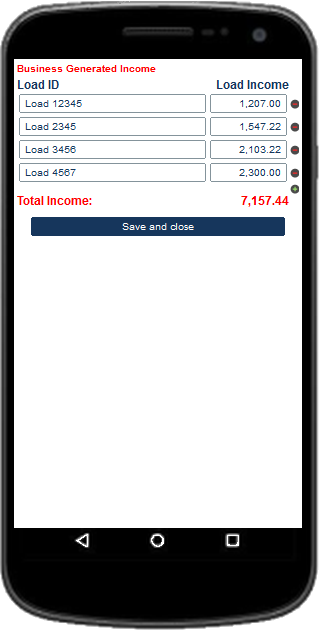
  1. Click on the Button to "Update Your Business Income".

  2. Update the Load ID's and Load Income​ for each of your Year To Date Loads.

  3. Then Click on "Save and Close" and return to the "Task Selection" Page.

Submit New Expense Reports


Now Click on the "Submit New Expense Report" button. NOTE: You will do the the next set of instructions to update each of your year to date expenses to get the app up to date.​

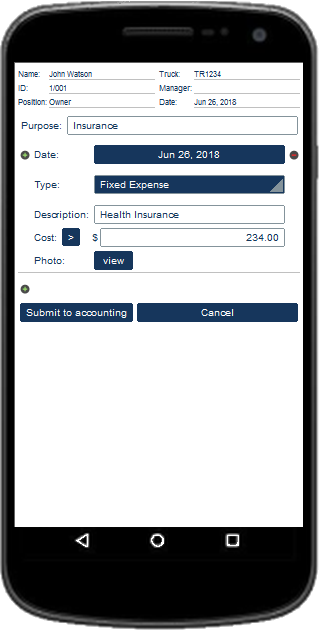
  1. Click into the "Purpose Field" and type a purpose that will help you to remember why the expense occurred. If at all possible For Fixed Expenses ( type Weekly or Monthly Payment or Insurance and such) and for Variable Expenses (type the Load ID and info such as fuel 100 gallons or such) or for Personal Cost (Meals and such).​

  2. Change the "Date" to the Date when the expense occurred.

  3. Use the "Type" Drop Down Box to select the type of expense. Match this expense to the same type as that which is used on your Owner Operator #CostPerMileWorksheet unless it is a "Personal Expense".

  4. In the "Description Box", type the purpose of the expense. Use Phrases such as those listed on your #OwnerOperatorCostPerMilespreadsheet. For example ( Tractor Fuel, Truck Cost, Refer Fuel, Lumper, Health Insurance, Tolls, Meals, Hotel, etc.).

  5. In the "Cost Box" type the amount found on the receipt.

  6. Click on the "ADD" Button to add a photo of the receipt. NOTE: You can choose to get the photo from your Camera or your Photo Gallery.

  7. Select "Camera" to take a Photo of the receipt and take the photo.

  8. Click on the "Check Mark" to accept the image or the "Delete" button to take it again.

  9. Click on "OK".​ NOTE: Select "Gallery" to get the photo from your devices photo gallery.

  10. Click on the "Submit to Accounting" Button.

Post The Expense Report Into The App's Accounting System.


  1. Under "Accountant" Click on the button to post the expense report into the app's #accountingsystem.

  2. Click on the "Mark As Posted To Accounting" Button.

NOTE: As the Owner and Accounting you can look at a summary of the expense reports in the accounting system or you can use the "View" button to look at the expense reports submitted by you.​ (See Below)


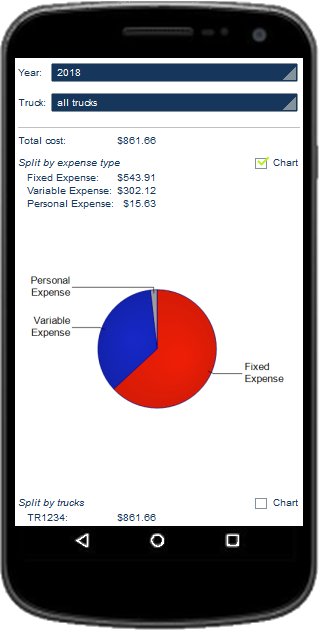
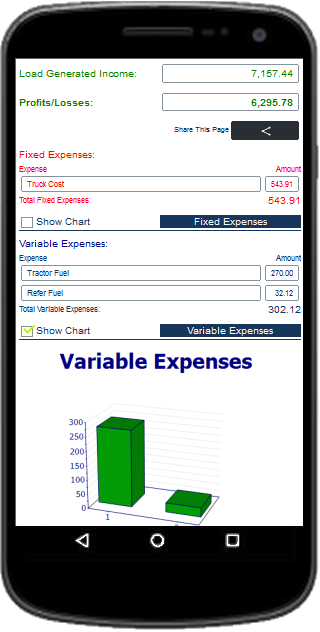
NOTE: As the Owner You can use the "View Your Business Balance Sheet" to see your "Business Balance Sheet" and your "Owner Operator #ProfitandLoss Statement". You will also be able to review a Bar Chart of the #truckingexpenses spreadsheet. (See Below)


Update The Expense Reports For Your Additional Trucks and Drivers

  1. From the "Task Selection Page", Click on your "Devices Back Button".

  2. Click on the "Driver Selection" Button if you have other Drivers and other Trucks.

  3. You should now see all of your Truck drivers in the Drop Down Box.​ NOTE: THIS APP ASSUMES THAT YOU HAVE YOUR DRIVERS SEND RECEIPTS AND EXPLANATIONS OF THEIR TRUCKING EXPENSES. YOU WILL NEED THIS TO NOW ENTER ACCOUNTING FOR TRUCK DRIVERS IN YOUR TRUCKS. NOTE: You will need to follow these procedures for each of your Truck Drivers.

  4. Select one of the drivers from the list so that you can enter the truck drivers expense reports into your accounting system.​

  5. Click on the "Start" Button.

  6. Now Click ​on the "Submit New Expense Report" Button.

  7. Update each of your drivers year to date expenses to get the app up to date in the same manner in which you updated your own expenses. NOTE: You will be able to use the "View" Button to see each of the reports for the driver after they have been submitted for approval.

  8. Click on your "Devices Back Button".

NOTE: After updating each of your drivers expense reports you will need to Approve them and Post them into the Apps Accounting System.


Approve Your Additional Trucks and Drivers Expense Reports and Post them into the Apps Accounting System


  1. Click on the "Driver Selection" Drop Down Box and select your name.

  2. Click on the "Start" Button.

  3. Under "Owner" Click on the button to "Approve New Expense Reports Submitted By Any Driver".​ NOTE: You will have the option to "Approve" or "Reject" the Expense Report. If you posted the expense because you have approved it you will probably not need to use the "Reject" Button. However, if you want to keep a record of rejected expenses you can record them this way and be able to review each of the rejected expense reports when viewing the app using the Drivers Name. The expenses will not be added into the Accounting System.

  4. Select "Approve"​ and return to the "Task Selection Page".

  5. Under "Accountant" Click on the button to "Post the Approved Expense Report" into the accounting system.

  6. Click on the Button to Mark the expense report as "Posted to Accounting" and return to the "Task Selection Page".

After you have approved and posted each drivers year to date expense reports and your Truckers Expense Reports App is updated;


From the "Task Selection" page:

View submitted and approved expense reports, Review a summary and charts for all of the expense reports in the accounting system By Year,​ By Truck, By Expense, and By Drivers. You can Add New Trucks and Drivers, Update Your Business Income, Submit New Expense Reports, Email and Download The Business Balance Sheet for Loading To Excel Using The Share Button.


Use your "Devices Back Button" to exit the App. Your Work will be Saved and available when you need to update or review.

The Truckers Expense Reports and Accounting for Truckers App is available in your download with a Full Access to the Truckers Trip Planning App, it is included in the Solo Lease and Owner Operator Trip Planning App, the Team Lease and Owner Operator Trip Planning App, the Solo Company Driver Trip Planning App, and the Team Company Drivers Trip Planning App. The app is also available as an individual app here: Truckers Expense Reports and Accounting for Truckers App.


Updated: Sep 12, 2018

Professional Drivers who want to consistently deliver on time need to focus their trip planning on hours of service, not drive time.


Hours of Service, Not Drive Time image

Are you making the number one mistake being made by almost everyone in the trucking industry; trip planning based on drive time rather than trip planning based on hours of service?


#ProfessionalDrivingSchools are teaching it, #AppDevelopers are still building apps based on it, #Dispatchers are still assigning loads based on it, #Shippers and #Receivers are still tracking loads based on it, and it's been a consistent cause of stress and frustration throughout the trucking industry for years.


We have always been taught that we could easily determine the time it takes for anything to travel from one place to another mathematically by simply using a formula to calculate the Estimated Time of Arrival, (Distance / Speed = Time). When walking, running, riding a bike, throwing a ball, or even driving a car, everything can be timed based on this formula. For most things, it gives a perfect solution. But, Don't be misled! This does not work for Professional Driving when seeking to determine your ETA to your destination.


The formula, (drive time as it is referred to in the trucking industry) has not worked to assist Professional Drivers in planning trips since the Hours of Service for Drivers Final Rule on February 27, 2012, and the compliance date of it's remaining provisions on July 1, 2013. Why? Because Professional Drivers have restrictions that interrupt the formula called "Hours of Service Rules".


For years drivers have compensated for the belief that the root of the on-time delivery problem rested on them and resulted to manipulating the hours of service requirements by changing their logs to add back the time they needed to complete the run. Now, they can't cheat on their logs anymore!


After numerous injury's, incidents, accidents, and major court cases exposing hours of service violations as the root cause, the Federal Motor Carrier Safety Administration (#FMCSA) decided enough was enough and mandated the Electronic Logging Device (#ELD) with a compliance date of December 18, 2017 to prevent drivers from manipulating their hours of service clocks. And yet,


Many Professional Drivers still take chances believing that the Company they drive for does not allow them to turn down loads that may be unsafe or cause them to violate the Federal Hours of Service Rules and expect that they will be terminated or left sitting in the truck stop without loads if they do. Who is it that's willing to take the fall for this, the Dispatcher manipulating them to accept loads that they can't legally deliver, or the Trucking Company, while knowing that Section 405 of the Surface Transportation Assistance Act (#STAA) enacted in 1982 provides protections for Professional Drivers reporting this retaliation?


Trucking Companies have already found out the hard way when the United States Department of Labor's Occupational Safety and Health Administration (#OSHA) in one case had them to pay a Professional Driver back wages of $23,203, plus interest, $50,000 in compensatory and $50,000 in punitive damages and reasonable attorney's fees and in another case more than $276,000 in back wages, damages, and forced them to take other corrective actions such as re-instating the driver.


The Bottom Line:


The hours of service rules require that all work while not driving such as vehicle inspections, loading, unloading, and fueling be recorded in your logs. Furthermore, Professional Drivers have a limited number of hours that they can work or drive and are required to take mandatory rest breaks. Because of these restrictions, everyone in the trucking industry need to once and for all realize that Professional Drivers cannot be expected to turn the switch, start driving, and go directly from start to finish based on the drive time calculation.


Professional Drivers need to trip plan based on hours of service, not drive time.


Get Access to the Truckers Trip Planning App and Use the Hours of Service Calculator to help determine whether you have the required hours of service and whether you can successfully deliver your load on time before accepting the load.


Learn how to use the Load Comparison Trucking Profit and Loss Spreadsheet from the Truckers Trip Planning App and compare your profits and losses for up to five loads.


The Load Comparison App can be used for two very important functions to help lease operators and owner operators track their profits and losses. The trucking profit and loss spreadsheet is designed to broaden your focus on running more profitable loads.


Objective 1: You can use the Load Comparison #TruckingProfitandLossSpreadsheet to compare up to five loads from the load boards you use to quickly determine which of the five is the most profitable load for you to run based on your truck operating cost.


  1. First update your #costpermilecalculator to ensure that it is reporting the correct cost per mile to the trucking profit and loss spreadsheet.

  2. Next select the button to go to the Load Comparison App.

  3. Update your core data. This information will be persistent on the app and will only need to be updated when you need to make changes. To make changes you simply need to reenter the updated data.

  4. Select the number of loads that you will be comparing from the load board or whatever source you get your loads.

  5. Update the Load Pay, the Fuel Surcharge, the empty miles, and loaded miles for each of the loads in which you will compare.

  6. Scroll down and click on the "Compare Your Loads" button and the information you will need to analyze your loads will be calculated.

  7. You should be able to see which of the loads will be the most profitable based on your trucks operating cost per mile.

  8. To get an even clearer representation, select the "Show Chart" button to visualize the profit and loss in a bar chart.

  9. The calculations will remain on the trucking profit and loss spreadsheet when you close the app and will be available for future use until you decide to reset the app to analyze more loads.

Objective 2: You can use the profit and loss spreadsheet to review the loads you run one at a time so that you can see when your profitable loads are falling behind loads that are causing you a loss. By tracking your loads, you can track what you are doing and make adjustments on the loads you are running to increase your profits rather than waiting until the end of the week to look back and find that you didn't accomplish as much as you could have had you selected better loads.


Using the Load Comparison App to track your performance is relatively no different than analyzing the loads from the load board except that you will be updating the truckers profit and loss spreadsheet after each load that you run.


Update the Trucking Profit and Loss Spreadsheet for each load that you run.

  1. First update your cost per mile calculator and proceed to the Load Comparison App.

  2. Next update your core data just as you did before.

  3. Change the number of loads to one and update the Load Pay, the Fuel Surcharge, the empty miles, and loaded miles for each of the loads in which you will compare. NOTE: If you do not get the load pay or the fuel surcharge and is normally paid by the mile then simply multiply the total of the empty and loaded miles by the cents per mile and enter the result in it's appropriate place.

  4. Scroll down and click on the "Compare Your Loads" button to update the profit and loss for the load.

  5. On your next load return to Step 1 and repeat the process for up to 5 loads.

As you run your loads and add each load to your trucking profit and loss spreadsheet you should be noticing what kind of loads you are running and whether they are profitable as you would like them to be. If they are not then you should be looking to make some changes. Don't be too concerned if one load is far less profitable than the others unless you can see that you have absolutely no way of making up for it.


The Trucking Profit and Loss Spreadsheet Load Comparison App is another example of our commitment to set the standard for the meaning of apps that are "Built By Truckers For Truckers". The app was suggested by one of our members, Jason Lowery, who assisted in the build. Many thanks to him for his commitment to help other truckers.


The Load Comparison App will be free and available in your download with Full Access to the Truckers Trip Planning App, or when you download either the Solo Lease and Owner Operator Trip Planning App, or the Team Lease and Owner Operator Trip Planning App.


bottom of page