top of page
Truckers Trip Planning App Logo

The Truckers Trip Planning App Blog provides Industry news and discussions about truckers trip planning and load decisions geared towards helping company truck drivers, leased operators and owner operators gain greater profits from the loads they run.

Truckers-trip-planning-app-on-mobile (1)

Above all else.........stress reduction.


I could write a thesis on how stress impacts drivers. We have all heard or read the studies so I will not cover those in this writing. I will speak to how stress relates to our perception of our life and what we can do to change it.


The effect of stress manifests most commonly in the condition of depression. Drivers work hard, live in a confined space, and are placed under almost impossible dead lines. Depression is much like other emotions such as happiness. It is a perception of our world.


As an example. A man was on his way to work this morning and had a flat tire. He had to walk two miles in a pouring rain to have it repaired. He was most unhappy. On arriving at the repair shop he met a man in a wheel chair and shared his story. The man in the wheel just smiled and said he would have gladly walked a hundred miles in the rain if only he were able. This is what I mean by perception.


So how do we go about changing our perception?


Start by changing your environment. If you are a driver who has a disorderly truck, clean it up and get it organized. Structure and cleanliness contribute to mental well being. A good “spring cleaning” will do wonders. Take your truck through the truck wash. Everyone knows a clean truck drives better. Above all, get rid of junk you never use!


Develop this mindset: Slow is smooth and smooth is fast.


Personally I have but one speed. Wide open. As with most drivers, I started out hauling things that simply required hooking to it and heading to the destination wide open. Things changed for me when I became involved with hazardous materials. I had to retrain myself to slow down and focus. Driving to point “B” became a distant second on my list of priorities. This was very difficult but was absolutely necessary. Once I made this change I noticed a significant reduction in stress.


Slowing down and reducing stress is made easier by developing a routine. Prior to each day of work I have my planning time in which I take no phone calls, read any dispatch messages or allow any distractions. I verify my work using TTP, Google maps for traffic flow, weather apps for the planned route, and my road atlas for any restricted sections. This generally takes thirty minutes or so. At the end of this planning I have zero stress relating to my route and time line. Prior planning is an absolute must.


Following the operations planning, I move to the vehicle and do a very thorough pre trip. I use an air gauge on all tires while they are cold. Failing to pay attention to my tires has cost me heavily in the past. Anything that is deficient relating to the vehicle is repaired immediately. I do not trust rolling the dice because I always come up short. A leaking tire discovered at a truck stop may take an hour or better to repair. The same tire can take four plus hours for repair at roadside and be twice as costly. This holds true for most all repairs.


The things I have listed are nothing new but each of them contribute to stress and your quality of life as you perceive it. Failing to plan is something you have control over. Take the time to use the tools at your disposal such as the Trucker’s Trip Planning applications. Starting out like a lightning bolt to run two hours and have to stop for four because you didn’t plan properly is inefficient and over the top stressful.


Truly........slow is smooth and smooth is fast.


With the Truckers Expense Reports and Accounting for Truckers App, lease operators and owner operators can maintain their income statement, build their business balance sheet by recording their trucking expenses, Company Truck Drivers can record their personal expenses while maintaining their own accounting system.


To use the Truckers Expense Reports and Accounting for Truckers App, follow these step-by-step instructions:


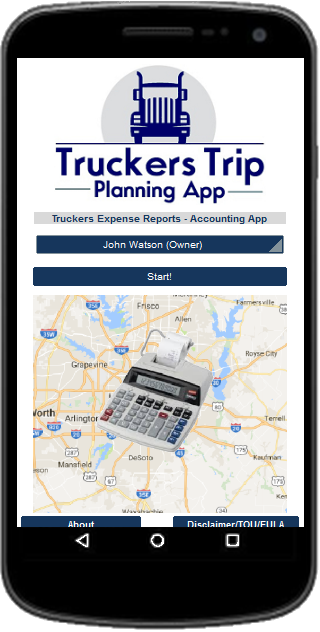
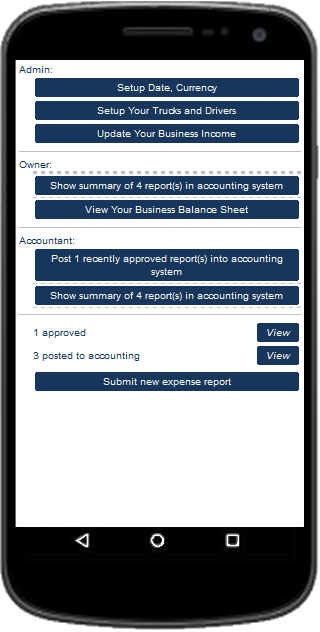
When the app opens it opens to the Home page. From there select "Owners Name" and click on "Start". This will take you to the "Task Selection" page of the App where you will see three roles; "Admin", "Owner", and "Accountant".


Set up your Date and Currency Preferences

  1. Start by clicking on the button to Set up your Date and Currency Preferences under "Admin".

  2. Use the "Date Selection" drop down box to choose the format you want to use.

  3. Next use the "Currency Code" drop down box to choose your currency.

  4. Now Check your "Prefix" or "Postfix" symbol.

  5. Finally, change the "Currency Exchange Rate" direction that you want to use for your truckers accounting system.

  6. "Save and Close" the page and it will return you to the "Task Selection" page.


Setup Your Trucks and Drivers


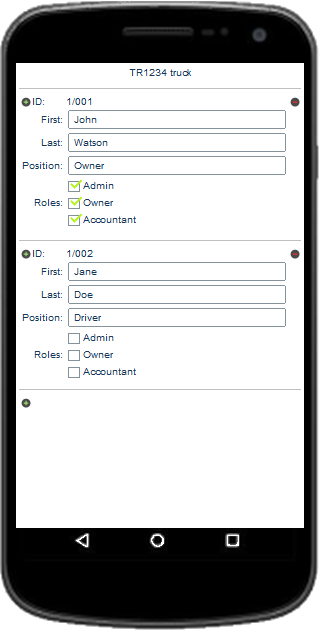
  1. Click on the button to "Setup Your Trucks and Drivers" and choose "Edit".

  2. ​Edit the Truck Number to your Truck Number​.

  3. Now Click on the button to "Edit your Truck's Drivers".

  4. Change "Owners" to your First Name.

  5. Change "Name" to your Last name. NOTE: Leave your "Position" as "Owner" and Leave "Admin", "Owner", and "Accountant" checked. This allows you to be able to perform all of the Task necessary to use the full functionality of the App. NOTE: If there is another Team Driver or Student in your Truck, Click on the + sign to add another driver.

  6. Enter the Drivers First Name, Last Name, and enter his position as "Driver".​ DO NOT ADD ANY ROLES TO This Driver.

  7. Click on your Devices "Back Button". NOTE: If you have more Trucks then you will need to set them up now. IF NOT Click on the SAVE AND CLOSE button to return to the Task Selection Page. IF You Do:

  8. Click on the + sign to add your next Truck.​

  9. Enter The "Truck Number".​

  10. Now Click on the button to "Edit your Truck's Drivers".

  11. SCROLL DOWN and Click on the + sign. You will see that the Truck ID is now your second truck.

  12. Do this for each Driver in the Truck: Enter the Drivers First Name, Last Name, and enter his position as "Driver".​ DO NOT ADD ANY ROLES TO The Driver.

  13. Click on your Devices "Back Button".

  14. Click on "Save and Close" to return to the "Task Selection" Page.

Update Your Business Income


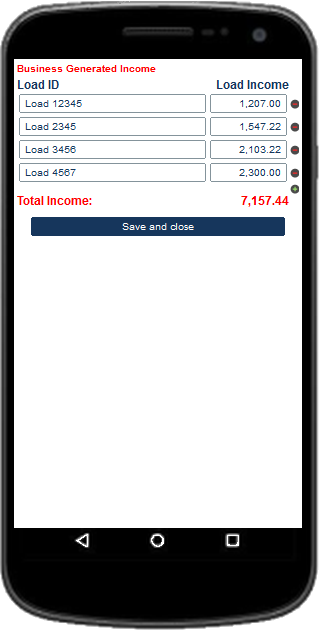
  1. Click on the Button to "Update Your Business Income".

  2. Update the Load ID's and Load Income​ for each of your Year To Date Loads.

  3. Then Click on "Save and Close" and return to the "Task Selection" Page.

Submit New Expense Reports


Now Click on the "Submit New Expense Report" button. NOTE: You will do the the next set of instructions to update each of your year to date expenses to get the app up to date.​

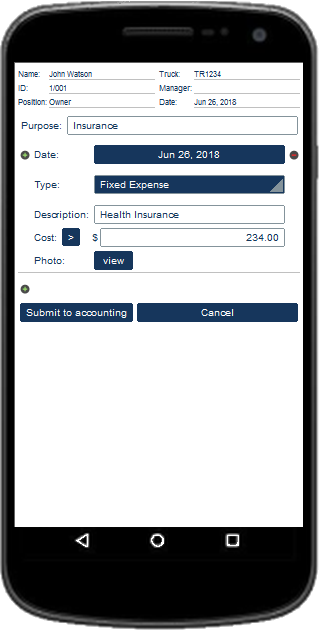
  1. Click into the "Purpose Field" and type a purpose that will help you to remember why the expense occurred. If at all possible For Fixed Expenses ( type Weekly or Monthly Payment or Insurance and such) and for Variable Expenses (type the Load ID and info such as fuel 100 gallons or such) or for Personal Cost (Meals and such).​

  2. Change the "Date" to the Date when the expense occurred.

  3. Use the "Type" Drop Down Box to select the type of expense. Match this expense to the same type as that which is used on your Owner Operator #CostPerMileWorksheet unless it is a "Personal Expense".

  4. In the "Description Box", type the purpose of the expense. Use Phrases such as those listed on your #OwnerOperatorCostPerMilespreadsheet. For example ( Tractor Fuel, Truck Cost, Refer Fuel, Lumper, Health Insurance, Tolls, Meals, Hotel, etc.).

  5. In the "Cost Box" type the amount found on the receipt.

  6. Click on the "ADD" Button to add a photo of the receipt. NOTE: You can choose to get the photo from your Camera or your Photo Gallery.

  7. Select "Camera" to take a Photo of the receipt and take the photo.

  8. Click on the "Check Mark" to accept the image or the "Delete" button to take it again.

  9. Click on "OK".​ NOTE: Select "Gallery" to get the photo from your devices photo gallery.

  10. Click on the "Submit to Accounting" Button.

Post The Expense Report Into The App's Accounting System.


  1. Under "Accountant" Click on the button to post the expense report into the app's #accountingsystem.

  2. Click on the "Mark As Posted To Accounting" Button.

NOTE: As the Owner and Accounting you can look at a summary of the expense reports in the accounting system or you can use the "View" button to look at the expense reports submitted by you.​ (See Below)


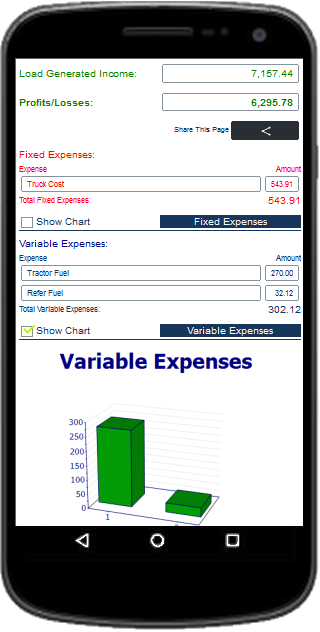
NOTE: As the Owner You can use the "View Your Business Balance Sheet" to see your "Business Balance Sheet" and your "Owner Operator #ProfitandLoss Statement". You will also be able to review a Bar Chart of the #truckingexpenses spreadsheet. (See Below)


Update The Expense Reports For Your Additional Trucks and Drivers

  1. From the "Task Selection Page", Click on your "Devices Back Button".

  2. Click on the "Driver Selection" Button if you have other Drivers and other Trucks.

  3. You should now see all of your Truck drivers in the Drop Down Box.​ NOTE: THIS APP ASSUMES THAT YOU HAVE YOUR DRIVERS SEND RECEIPTS AND EXPLANATIONS OF THEIR TRUCKING EXPENSES. YOU WILL NEED THIS TO NOW ENTER ACCOUNTING FOR TRUCK DRIVERS IN YOUR TRUCKS. NOTE: You will need to follow these procedures for each of your Truck Drivers.

  4. Select one of the drivers from the list so that you can enter the truck drivers expense reports into your accounting system.​

  5. Click on the "Start" Button.

  6. Now Click ​on the "Submit New Expense Report" Button.

  7. Update each of your drivers year to date expenses to get the app up to date in the same manner in which you updated your own expenses. NOTE: You will be able to use the "View" Button to see each of the reports for the driver after they have been submitted for approval.

  8. Click on your "Devices Back Button".

NOTE: After updating each of your drivers expense reports you will need to Approve them and Post them into the Apps Accounting System.


Approve Your Additional Trucks and Drivers Expense Reports and Post them into the Apps Accounting System


  1. Click on the "Driver Selection" Drop Down Box and select your name.

  2. Click on the "Start" Button.

  3. Under "Owner" Click on the button to "Approve New Expense Reports Submitted By Any Driver".​ NOTE: You will have the option to "Approve" or "Reject" the Expense Report. If you posted the expense because you have approved it you will probably not need to use the "Reject" Button. However, if you want to keep a record of rejected expenses you can record them this way and be able to review each of the rejected expense reports when viewing the app using the Drivers Name. The expenses will not be added into the Accounting System.

  4. Select "Approve"​ and return to the "Task Selection Page".

  5. Under "Accountant" Click on the button to "Post the Approved Expense Report" into the accounting system.

  6. Click on the Button to Mark the expense report as "Posted to Accounting" and return to the "Task Selection Page".

After you have approved and posted each drivers year to date expense reports and your Truckers Expense Reports App is updated;


From the "Task Selection" page:

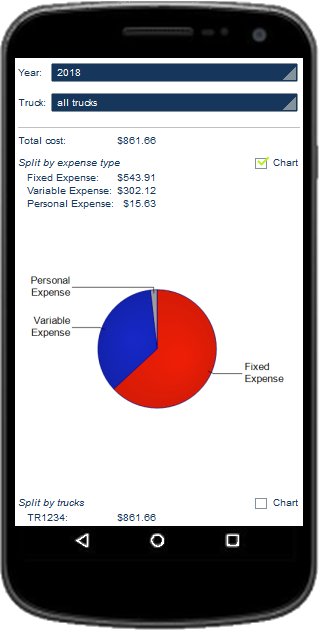
View submitted and approved expense reports, Review a summary and charts for all of the expense reports in the accounting system By Year,​ By Truck, By Expense, and By Drivers. You can Add New Trucks and Drivers, Update Your Business Income, Submit New Expense Reports, Email and Download The Business Balance Sheet for Loading To Excel Using The Share Button.


Use your "Devices Back Button" to exit the App. Your Work will be Saved and available when you need to update or review.

The Truckers Expense Reports and Accounting for Truckers App is available in your download with a Full Access to the Truckers Trip Planning App, it is included in the Solo Lease and Owner Operator Trip Planning App, the Team Lease and Owner Operator Trip Planning App, the Solo Company Driver Trip Planning App, and the Team Company Drivers Trip Planning App. The app is also available as an individual app here: Truckers Expense Reports and Accounting for Truckers App.


Learn how to use the Load Comparison Trucking Profit and Loss Spreadsheet from the Truckers Trip Planning App and compare your profits and losses for up to five loads.


The Load Comparison App can be used for two very important functions to help lease operators and owner operators track their profits and losses. The trucking profit and loss spreadsheet is designed to broaden your focus on running more profitable loads.


Objective 1: You can use the Load Comparison #TruckingProfitandLossSpreadsheet to compare up to five loads from the load boards you use to quickly determine which of the five is the most profitable load for you to run based on your truck operating cost.


  1. First update your #costpermilecalculator to ensure that it is reporting the correct cost per mile to the trucking profit and loss spreadsheet.

  2. Next select the button to go to the Load Comparison App.

  3. Update your core data. This information will be persistent on the app and will only need to be updated when you need to make changes. To make changes you simply need to reenter the updated data.

  4. Select the number of loads that you will be comparing from the load board or whatever source you get your loads.

  5. Update the Load Pay, the Fuel Surcharge, the empty miles, and loaded miles for each of the loads in which you will compare.

  6. Scroll down and click on the "Compare Your Loads" button and the information you will need to analyze your loads will be calculated.

  7. You should be able to see which of the loads will be the most profitable based on your trucks operating cost per mile.

  8. To get an even clearer representation, select the "Show Chart" button to visualize the profit and loss in a bar chart.

  9. The calculations will remain on the trucking profit and loss spreadsheet when you close the app and will be available for future use until you decide to reset the app to analyze more loads.

Objective 2: You can use the profit and loss spreadsheet to review the loads you run one at a time so that you can see when your profitable loads are falling behind loads that are causing you a loss. By tracking your loads, you can track what you are doing and make adjustments on the loads you are running to increase your profits rather than waiting until the end of the week to look back and find that you didn't accomplish as much as you could have had you selected better loads.


Using the Load Comparison App to track your performance is relatively no different than analyzing the loads from the load board except that you will be updating the truckers profit and loss spreadsheet after each load that you run.


Update the Trucking Profit and Loss Spreadsheet for each load that you run.

  1. First update your cost per mile calculator and proceed to the Load Comparison App.

  2. Next update your core data just as you did before.

  3. Change the number of loads to one and update the Load Pay, the Fuel Surcharge, the empty miles, and loaded miles for each of the loads in which you will compare. NOTE: If you do not get the load pay or the fuel surcharge and is normally paid by the mile then simply multiply the total of the empty and loaded miles by the cents per mile and enter the result in it's appropriate place.

  4. Scroll down and click on the "Compare Your Loads" button to update the profit and loss for the load.

  5. On your next load return to Step 1 and repeat the process for up to 5 loads.

As you run your loads and add each load to your trucking profit and loss spreadsheet you should be noticing what kind of loads you are running and whether they are profitable as you would like them to be. If they are not then you should be looking to make some changes. Don't be too concerned if one load is far less profitable than the others unless you can see that you have absolutely no way of making up for it.


The Trucking Profit and Loss Spreadsheet Load Comparison App is another example of our commitment to set the standard for the meaning of apps that are "Built By Truckers For Truckers". The app was suggested by one of our members, Jason Lowery, who assisted in the build. Many thanks to him for his commitment to help other truckers.


The Load Comparison App will be free and available in your download with Full Access to the Truckers Trip Planning App, or when you download either the Solo Lease and Owner Operator Trip Planning App, or the Team Lease and Owner Operator Trip Planning App.


bottom of page